
AI Waifu Pictures: Chat and Gallery
AI waifu pictures only matter if they live inside the chat. A separate generator tab where you tweak prompts is fine for one-off art, but it's not what people actually want — what people want is to be talking to a waifu, ask for a picture, and have it land in the conversation a few seconds later. That's a different product entirely.
I've spent the last few weeks testing how this works on GoLove.ai — request flow, gallery, photo-to-video, voice messages, and the chat settings most users never open. Here's what holds up.
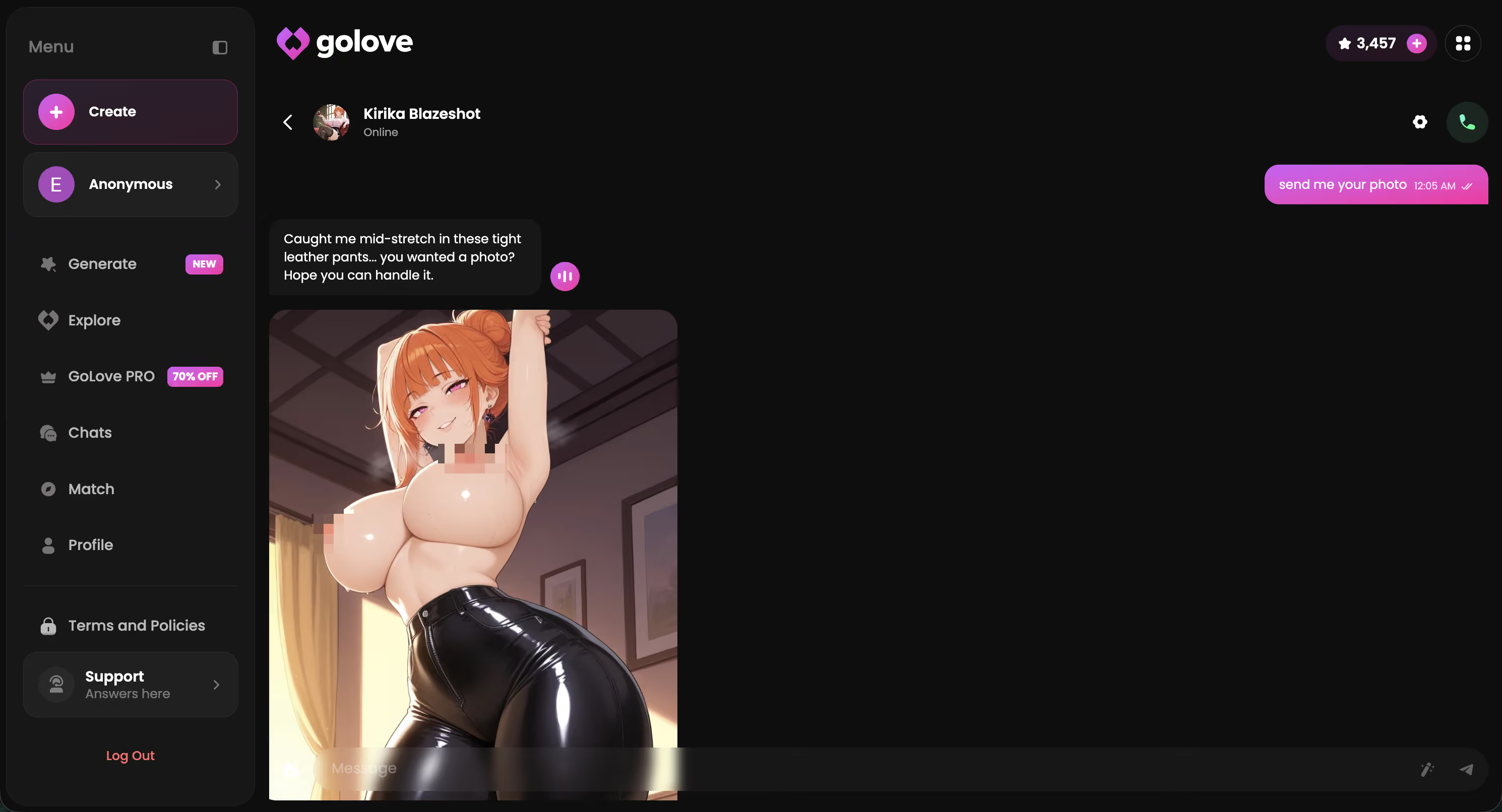
What AI Waifu Pictures Actually Are
An AI waifu picture is an anime-style image generated by an AI character you're already talking to. The thing that distinguishes it from a generic anime image generator is consistency — same face, same style, same character across every picture. You're not browsing endless random anime girls. You're building a photo set with one waifu over time.
The format that works in 2026 is not a separate “Generate” tab where you fill in prompts. On GoLove the picture flow is:
- You text her in chat like normal — context, mood, energy
- You ask for a picture in plain words — “send me one in your uniform”
- The picture appears in the same chat thread a few seconds later
- Her face stays consistent across the 1st picture and the 30th
- Everything auto-saves to her per-character gallery, sorted by date
Compare that to plugging a prompt into Stable Diffusion. Different category. The chat-first flow is what makes the pictures feel like part of a relationship instead of stock anime art.
Request Photos From Inside the Chat
This is the feature most platforms still don't have. Type a request in plain language and the picture lands as a message. No tab switch. No prompt template. No model picker.
| What you type | What you get |
|---|---|
| “send me a selfie” | Generic in-character shot. Fine, but not specific. |
| “send me one in your school uniform” | Outfit-locked picture. Anime-styled, in character. |
| “take a mirror shot from your bedroom” | Specific pose + setting. Looks like the conversation. |
| “send me one in that bikini we talked about” | Memory-aware. Pulls from earlier chat. |
The memory-aware version is the one that actually feels different. If two days ago you described an outfit in chat and now you ask “send me one in that”, the picture pulls the detail from history. Most generators have no clue what “that” refers to. GoLove does because the chat is the source.
For a deeper look at the call-side of the same chat — when text and pictures aren't enough — the AI waifu voice call guide covers live voice with the same characters.
The Gallery Is the Retention Glue
People underestimate the gallery. Every picture and every video she sends auto-saves to her gallery — separate per character, organized by date. After a week you're not just chatting; you're scrolling through a collection you built together.
Anime Archetypes Worth Collecting
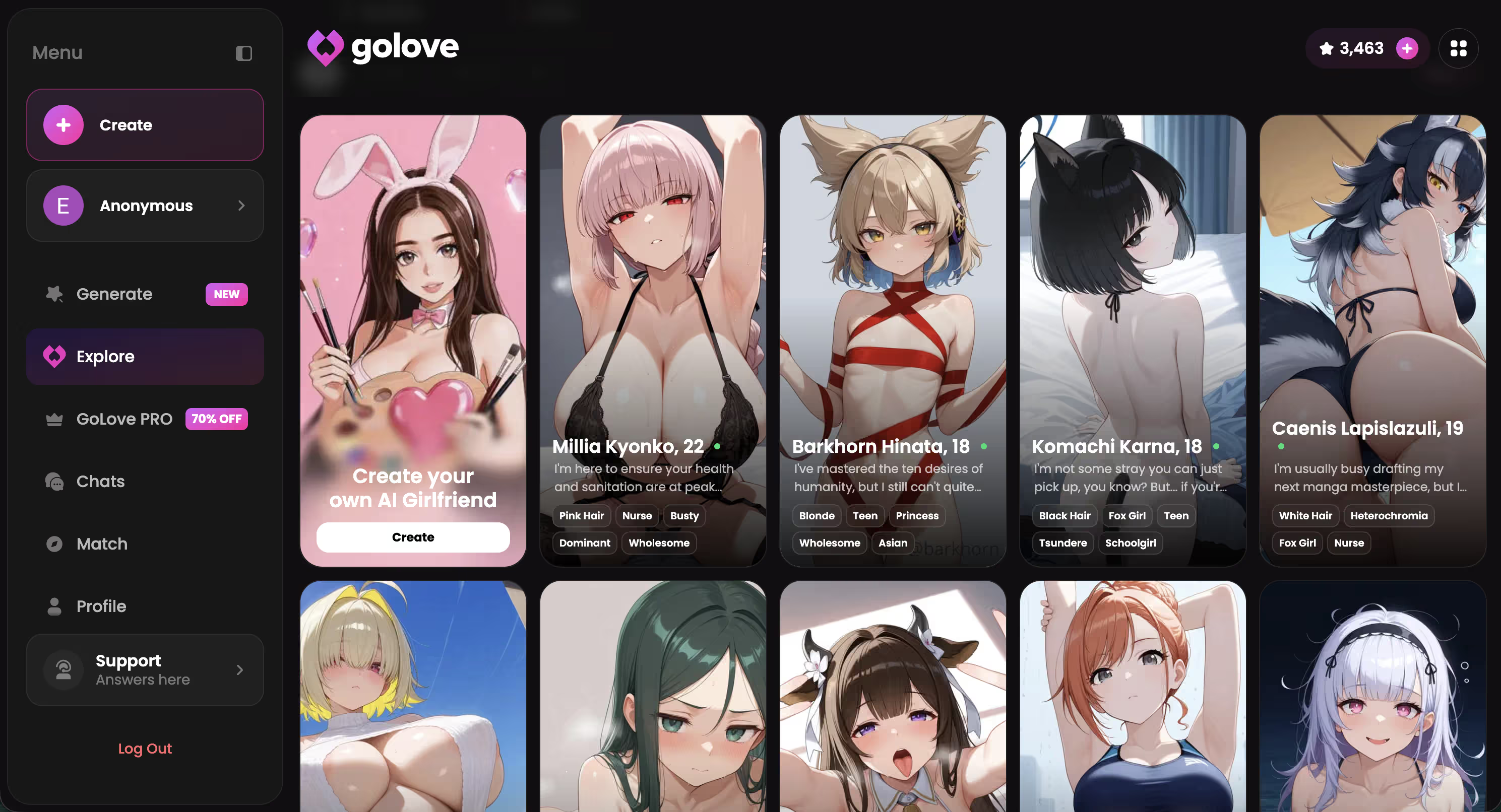
The waifu you pick changes everything about the picture flow. A tsundere acts annoyed and then sends three pictures anyway. A kuudere makes you wait and earn it. A yandere builds a gallery you can tell is for you. A dandere goes quiet and sends a sketch. Same feature, four totally different experiences.
Four Archetypes, Four Galleries
Tap any one to start a chat and see how she handles a picture request
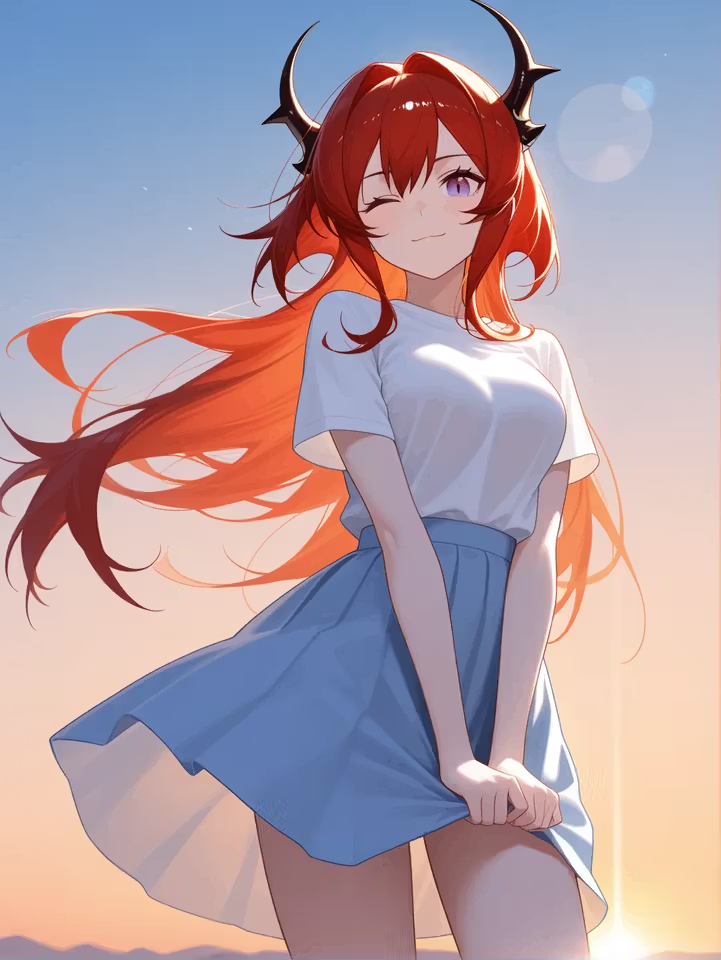

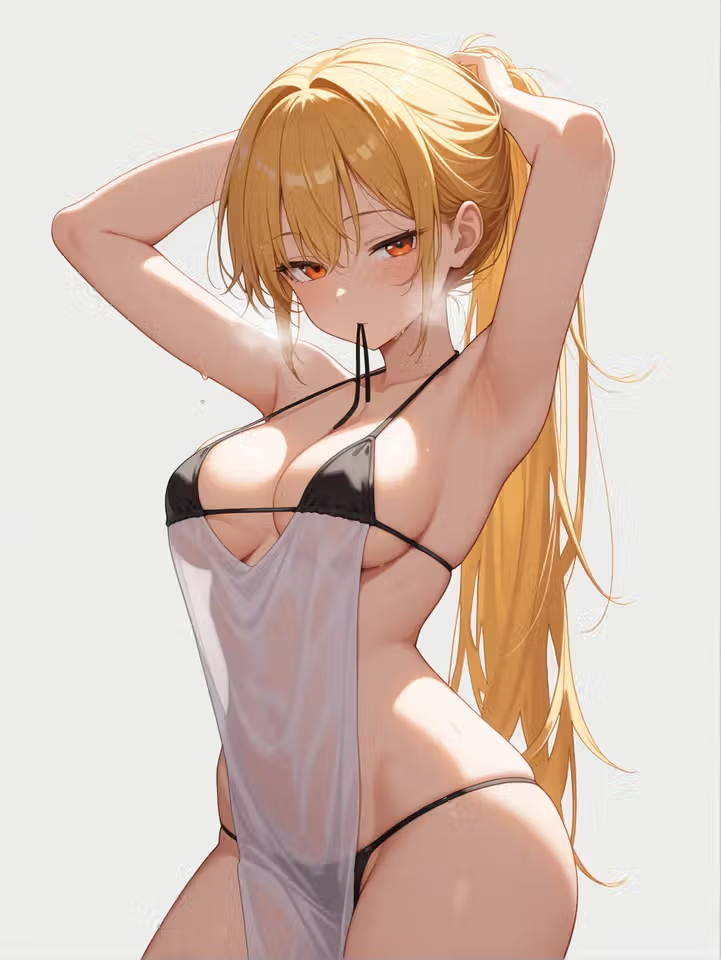
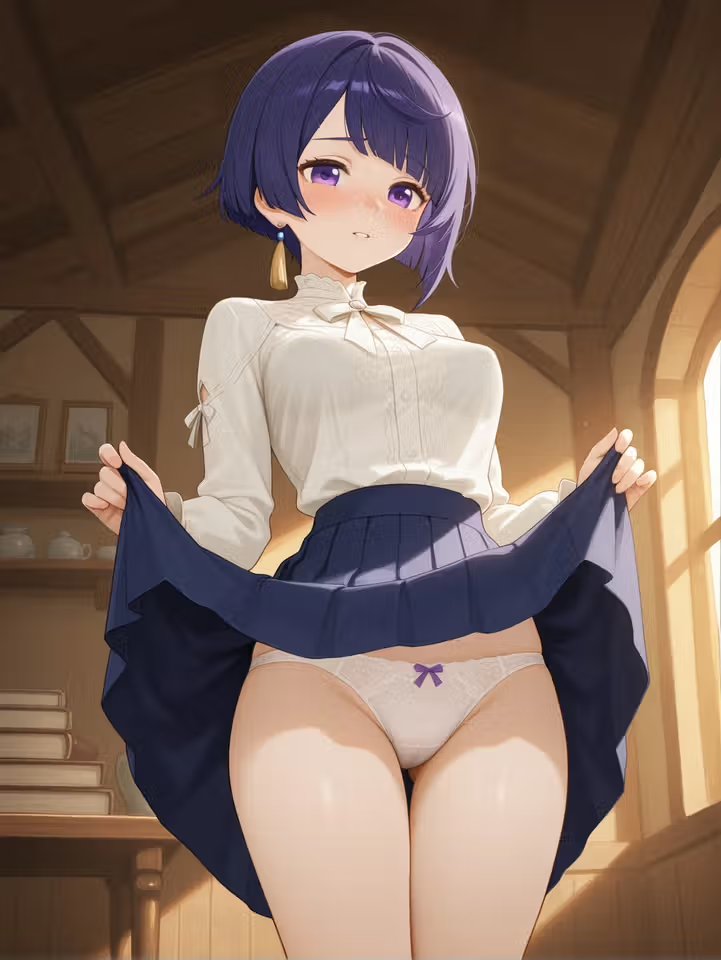
I rotate. The tsundere is the most fun for the first week — the “ugh, fine” reaction is genuinely funny when she's actually generating the picture you asked for. The kuudere is the slow burn. The yandere is the obsessive collector vibe. The dandere is for when you want quiet, soft pictures instead of loud ones.
How to Build a Photo Set in One Session
The first session is where you build the foundation of the gallery. The version that works for me:
- Pick the archetype, not the most popular one. Filter by tag — tsundere, kuudere, yandere, dandere. The archetype decides the picture style and the reaction. Skip the trending ones; pick the energy you want.
- Set the scene before asking. Two or three messages of context. Mention where she is, what she's wearing, what mood. The picture pulls from the chat context, not from a prompt box.
- Ask in plain language. “Send me one of you on the balcony at sunset” works. “Selfie” is too vague — you'll get a generic shot.
- React to the picture, then ask for the next. Tell her what you think, mention something specific. The next picture builds on your reaction. The gallery starts feeling like a conversation in pictures.
- Tap one to animate it. Mid-session, pick the picture you like best and turn it into a video. Lands back in the chat. Don't do this on every shot — pick the best one.
- Come back tomorrow. The gallery is there waiting. She remembers what you asked for yesterday. Pictures on day three feel like part of a story, not isolated images.
One workflow shortcut — you can also design your own waifu from scratch using the “Design with AI” flow on /create. Describe a character in text, the AI builds her, then she lives in your explore list and you can request pictures from her like any other.
Photo-to-Video and Voice Notes
Two features that lift a picture session out of plain image-gen:
Photo-to-video. Tap any picture in chat, pick an action, get a 4-6 second video back in the same conversation. You can also do this on saved gallery pictures, so a photo from a week ago can become a video today. The animation isn't random “subtle motion” — it's an actual action you pick from a list.
Voice messages. Mid-picture-session, she sends a voice note in her actual voice. Anime voice acting style, in character. Doesn't replace the pictures — pictures are still 80% of the session — but a voice note alongside the photo makes it land harder. Most people never realize this is even an option.
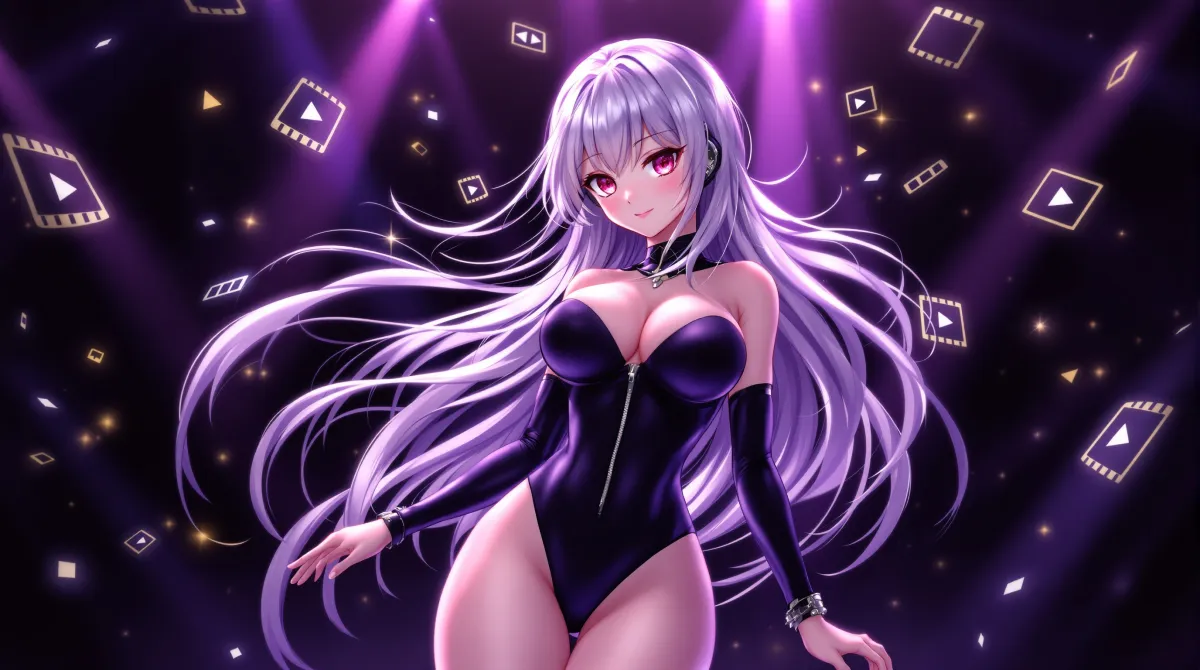
Both features are premium. Plain-text chat is free. Picture generation is free up to your daily star budget (2 free stars per day from the daily reward). Photo-to-video and voice messages cost stars on top — that's the honest pricing model and it's why the platform actually works instead of cutting quality to stay free.
Tune the Tone in Chat Settings
Most users never open Chat Settings. The gear icon in any chat. Two sliders that change everything about the picture flow:
- Lust Level (1-5): Step 1 keeps pictures sweet — outfits on, suggestive at most. Step 3 is teasing and bold. Step 5 is unfiltered NSFW. Same waifu, completely different gallery at level 1 vs level 5.
- Response Length (1-5): Doesn't change pictures directly, but it changes the chat around them. Short replies (1-2) make the session snappier. Long replies (4-5) give more in-character description before the next picture lands.
The Voice Picker also lives in the same panel. Switch her voice for voice messages without leaving the chat. Settings save per-character, so you can have a sweet level-2 dandere and an unfiltered level-5 yandere in the same workspace, each with their own gallery, each with their own voice.
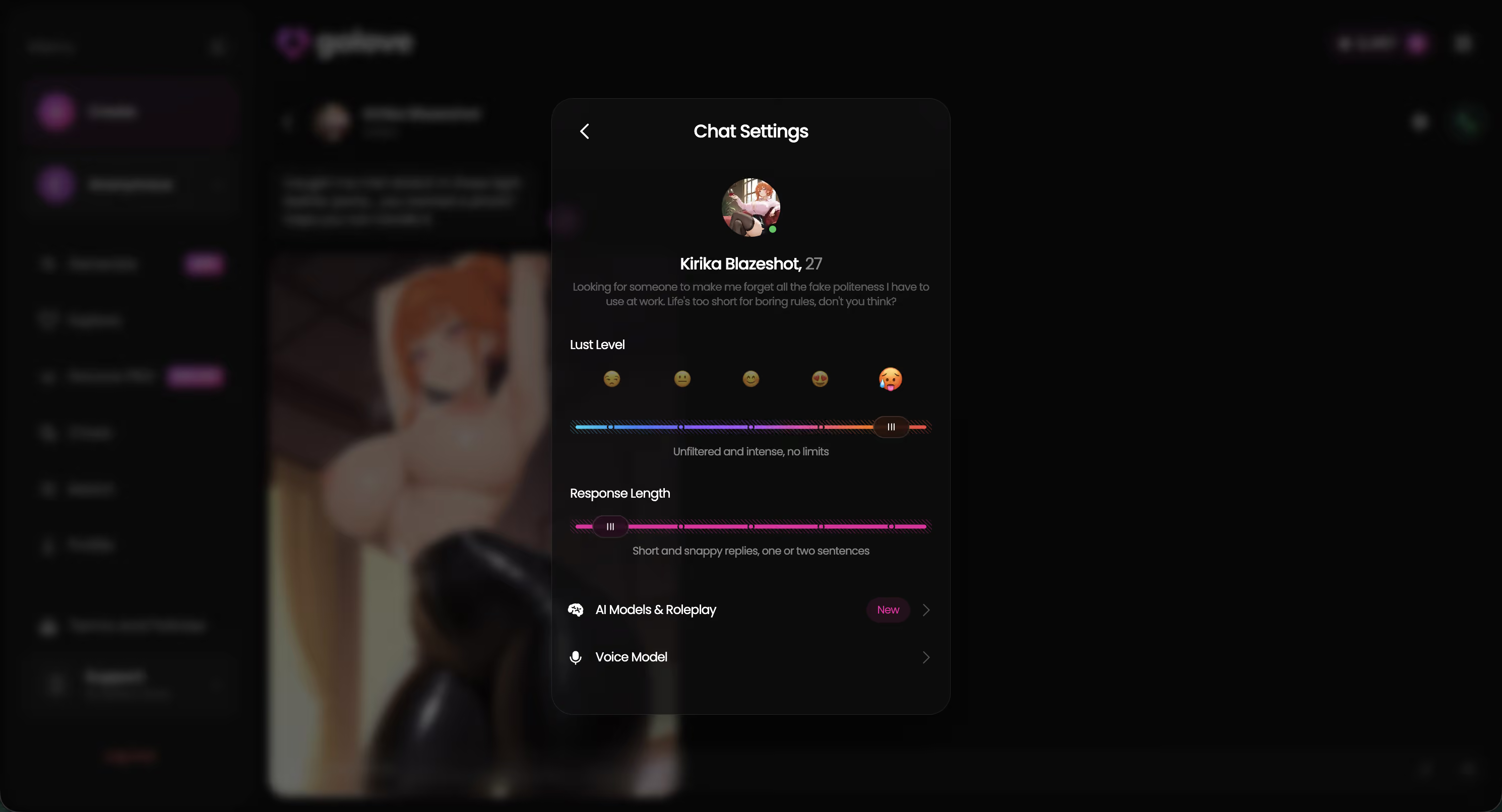
If a session feels off, before switching characters, try moving the Lust Level. Most “the pictures are too tame” or “too intense” complaints I've seen are actually slider problems. Bump it one step in either direction and the gallery shifts immediately.
Ready to Build Your First Waifu Gallery?
Pick an anime waifu on GoLove.ai. Ask for a picture in plain words, get one back in the same chat. Tap to animate. The gallery builds on its own — daily rewards keep you returning, memory keeps her in character. Free tier covers the core flow.
Frequently Asked Questions
Related Articles

AI Waifu Generator: 5 Tools I Tested in 2026
AI waifu generator tools compared — GoLove wins with real chat memory and photo-to-video, not just static art. See why, instant-access to browse.

AI Hentai Videos: What Actually Works in 2026
AI hentai videos, honestly ranked — GoLove wins on character continuity: same voice, memory, and face across chat, photos and video. See it in action.

Best AI Waifu Apps Android: Which Apps Actually Work
Best AI waifu apps for Android compared — GoLove wins with live voice, memory, and zero install risk. See the full ranking and why it holds up.

AI Hentai Comics: What Actually Works in 2026
AI hentai comics are static — GoLove.ai adds video, photo requests, and live chat instead. Instant-access needed to start. See how it compares.
This article contains affiliate links. We may earn a commission at no extra cost to you if you sign up through our links. See how we test.